
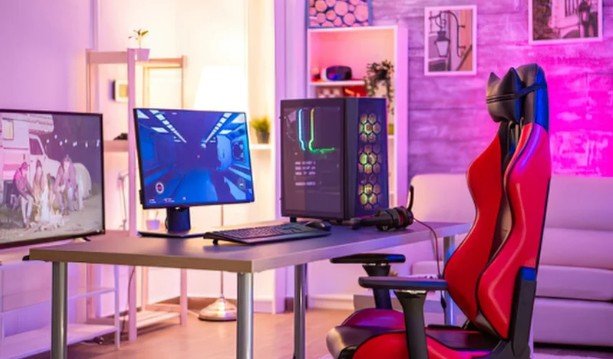
I want my gaming space to feel comfortable from the first match to the final checkpoint. But a comfortable setup takes more than a padded chair. Desk height, mouse placement, screen position, and uninterrupted sitting all deserve attention.
My approach to ergonomic gaming setup tips for wrist and back pain starts with adjusting what is already available. Bringing controls closer, supporting your feet, and changing positions can make your space easier to use without an expensive upgrade. Start with the checks below, then fine-tune each part around your body and preferred games.
Start With a Quick Gaming Setup Check
Before opening your game, sit where you normally play and check these basics:
- Your feet rest on the floor or a stable footrest.
- Your lower back meets the chair’s support.
- Your shoulders feel relaxed.
- Your elbows stay comfortably near your sides.
- Your wrists align with your forearms.
- Your mouse sits close to your keyboard.
- Your screen faces you directly.
- Your knees have room beneath the desk.
Check again while actually playing. A position that feels comfortable during menus may change when you lean forward during competitive rounds.
Adjust Your Chair and Desk Together
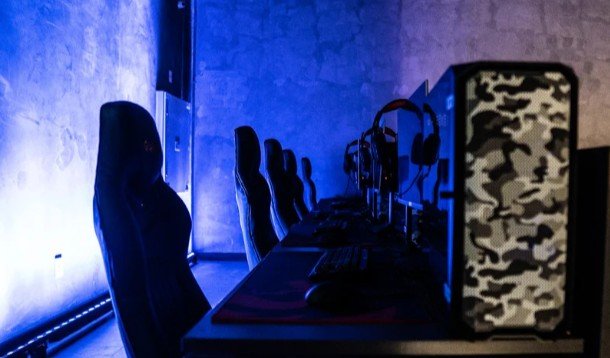
Support Your Feet and Lower Back
Sit back so the backrest supports you without forcing an exaggerated arch. Adjust lumbar support until it feels comfortable against your lower back.
If your chair lacks adjustable support, try a small rolled towel. Remove it if it increases pressure or discomfort.
Keep your feet supported. When a fixed desk requires raising your chair, add a stable footrest instead of leaving your feet dangling. Leave some space between the seat edge and the backs of your knees.
Match the Desk to Your Elbows
Place your hands on the controls with your shoulders relaxed. Your elbows should remain near your body, with your forearms approximately level.
If you shrug your shoulders to reach the desk, the surface may be too high. Raise the chair and support your feet, or consider a securely installed keyboard tray.
Avoid forcing your body into a rigid position. Comfortable support and regular movement matter more than holding one precise angle.
Position Your Keyboard and Mouse for Comfortable Wrists
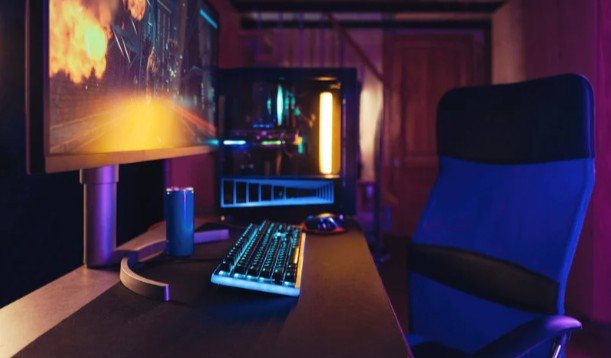
Flatten and Reposition Your Keyboard
Start with the keyboard feet folded down. Check whether your wrists bend upward or sideways while reaching frequently used keys. If you’re playing couch co op games for non gamer partners with a shared keyboard, make sure both players can reach their controls comfortably.
Move or rotate the keyboard slightly until your hands align more comfortably with your forearms. A compact keyboard can create additional mouse space when you rarely use a number pad.
Remap awkward controls when the game allows it. Frequently stretching for distant keys adds unnecessary effort.
Bring Your Mouse Closer
Keep the mouse beside the keyboard at the same working height. Leave enough room to move without reaching your shoulder outward.
Choose a mouse that fits your hand, and loosen an unnecessarily tight grip. Adjust sensitivity gradually to balance comfortable movement with accurate control.
Avoid pressing your wrist against a hard desk edge. If using a palm support, make sure it does not force your wrist upward or create pressure. An ergonomic label alone does not guarantee a comfortable fit.
Set Your Monitor Without Leaning Forward
Place your main screen directly ahead. Start around an arm’s length away, then adjust for screen size, eyesight, and readable text.
The top of the display should generally sit at or slightly below eye level. Your neck should feel comfortable without tipping backward or bending forward.
Increase interface scaling before moving your face toward small text. For dual monitors, center the screen used most often.
Reduce glare from windows and lamps. If using a laptop, raising the screen usually requires a separate keyboard and mouse so your hands can remain comfortably positioned.
Adapt Controller and Couch Gaming Setups
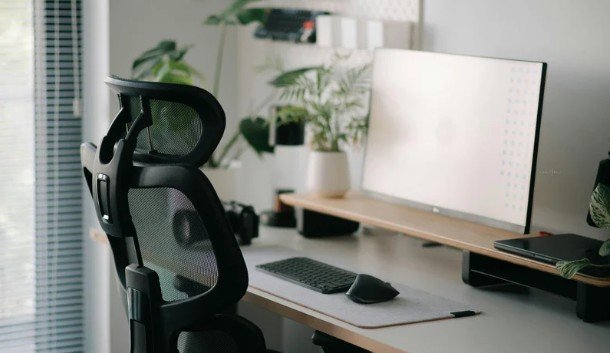
Controller players need support too. Sit against the backrest and bring the controller into a position that lets your shoulders relax.
Support your forearms with suitable armrests or a pillow without pushing your shoulders upward. Keep your wrists comfortably aligned rather than sharply bent.
Avoid spending an entire session curled sideways on a couch or looking up at a high television.
For handheld gaming, support your arms and raise the device enough to reduce prolonged downward looking. Change position before stiffness builds.
Build Movement Into Your Gaming Routine
A well-adjusted station still needs breaks. Use loading screens, matchmaking, and completed quests as reminders to release your grip and shift position.
Schedule regular breaks away from the screen, including a few minutes of walking roughly every hour. Take additional pauses when discomfort starts.
During breaks, try gentle shoulder rolls, opening and closing your hands, and comfortable neck movements. Stop any movement that causes pain.
Avoid suddenly doubling your usual session length. Total playing time matters alongside equipment placement.
Know When Setup Changes Are Not Enough
Persistent pain, recurring tingling, numbness, weakness, or symptoms affecting sleep deserve professional evaluation.
Reduce or stop the activity that aggravates symptoms. Do not use new equipment as permission to push through pain.
Frequently Asked Questions
1. What are the best ergonomic gaming setup tips for wrist and back pain?
Start with supported feet, comfortable lumbar support, relaxed shoulders, nearby controls, aligned wrists, and a directly positioned screen. Add regular movement breaks and adjust anything that causes pressure.
2. Do I need an expensive gaming chair?
No. Prioritize a chair that fits your body and offers usable adjustments. An adjustable office chair may work well. Try improving your current setup before buying replacements.
3. Should I use a wrist rest while gaming?
It depends on fit and placement. Avoid concentrated pressure beneath your wrist or a support that bends it upward. Reposition your equipment first and reassess comfort during play.
Make Your Next Session More Comfortable
I would start with one practical change: bring the mouse closer, support dangling feet, or adjust the screen. Then I would check comfort during actual gameplay. Small adjustments, regular movement, and attention to symptoms give me a more useful routine than chasing a supposedly perfect gaming posture.